
Access in AAC means the way a person makes their communication system work. Directly touching a screen with a finger is the easiest way to make a device work, but for people who are unable to do this there are different access methods that can be explored.
Direct touch access
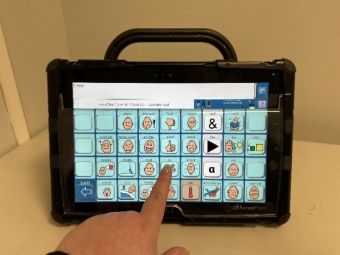
Direct touch access means using your finger to select icons on a touchscreen device, such as a smartphone or tablet. This is a common AAC access method because it is the easiest way to make a selection.
To make touch access easier, the device accessibility settings can be used. For example, press and holding for a set time to select, ignoring accidental touches or making the text bigger.
Some AAC users use a keyguard, which is a thick plastic cover with holes that sits on the screen. Keyguards can help guide your finger to the right place and make it easier to select what you want without errors.
Partner assisted scanning (PAS)
Partner-assisted scanning (also known as PAS) is a communication method that can be used where someone cannot easily point, touch or see their AAC. Instead, a communication partner helps by reading out or pointing to choices, one at a time, in order. When the communication partner gets to the right word or symbol, the person communicates “yes” using their own reliable signal. This might be a sound, a gesture, a blink, or any agreed‑upon response.
Partner‑assisted scanning can be flexible and personalised. It allows the person to take part in conversations even if they cannot use a device directly. The partner works at the person’s pace, giving plenty of time for them to respond.
To see partner-assisted scanning using an alphabet board, watch this video
To see partner-assisted scanning using a communication book, watch this video
Pointer control
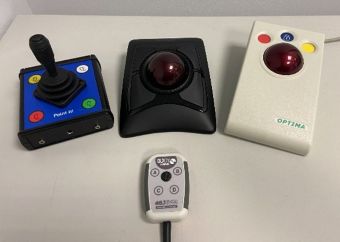
Pointer control works like a computer mouse, where the cursor freely moves across the screen of a communication device using tools such as:
- joystick
- trackball
- mouse
- trackpad
- head mouse (allows you to control the cursor by moving your head)
This access method allows AAC users to navigate a communication aid without needing to touch the screen directly. Pointer control tools come in a range of size, shapes and sensitivities, to suit different needs.
Eye pointing
Eye pointing is a communication method where an AAC user uses their eyes to look at objects, pictures, symbols, phrases or letters. Eye pointing can be used for everything from making simple choices, to complex systems that allow someone to generate full sentences. Some examples of eye pointing systems include:
- E-Tran frame
- MegaBee
- Eye-Link
To see someone using an E-Tran frame, watch this video
To someone using a MegaBee, watch this video
Eye gaze
Eye gaze access allows an AAC user to control a device’s cursor using only their eye movements. To do this the eyegaze camera directs an infared light into the AAC user’s eyes. This light is reflected back to the camera, allowing it to calculate exactly where the person is looking at the screen. Choosing an item to select on the screen can be done by waiting (dwelling), blinking or touching a switch.
Different eye gaze cameras suit different people so it can be useful to try a few different options. For some people, eye gaze may not be the most consistently reliable access method, and in these cases an alternative access method may need to be explored.
To see how eye gaze technology works, watch this video
Switch access
A switch is something you press, touch or move near to make an electronic device do something. For example, to turn on a light, control your TV or to access a communication aid. There are many different kinds of switches. They work in different ways, need different amounts of pressure and can be used by different parts of the body. The photo below shows a small selection of switches and examples of how people might use them.
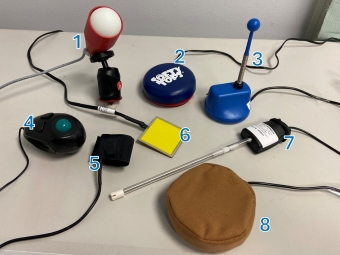
Photo description:
- Ping-pong switch: Only requires light action. Is water and moisture resistant. Ideal for use as a head switch.
- Buddy button with softy top – Durable and highly responsive switch. Gives auditory and tactile feedback with a click on activation. Using a softy top can reduce discomfort and improves tactile feedback.
- Wobble switch – Sprung switch that activates with light touch in any direction.
- Finger mouse – Handheld mouse that can be used as a switch. Also used as a pointer for computer access.
- FingerButton switch – Highly responsive with small activation area and very little force required to activate. Can be wraped around a finger.
- Pal pad switch – Ultra-sensitive and low-profile. Is durable and rigid.
- Puff switch – Can be used hands-free. Use a puff (breath) to activate.
- Pillow switch – Soft and smooth suitable for head or cheek activation.
To use a switch with a communication aid the switch can be used to move the highlight around the screen and then select what you want. To see how this works watch the video below.